

The Weather Channel - Radar
The Weather Channel
I opened The Weather Channel - Radar expecting a quick glance at the forecast, but it feels more useful when treated as a planning tool rather than a simple temperature display. It is a free weather app from The Weather Channel, built around current conditions, alerts, radar views, and the kind of information that helps you decide whether to leave now, wait, or change plans. The app is suitable for Everyone, so its presentation is approachable even if you are not comfortable with technical weather maps.
My first impression was that the app tries to cover several levels of need at once. You can check the immediate weather without studying a chart, then move deeper into radar and severe-weather information when the situation calls for it. That range is its biggest strength, although it also means the screen can feel busier than a minimalist weather widget. The best way to use it is to start with one practical question instead of exploring every screen at once.
Getting from installation to a useful weather decision
What to expect when you first open it
The Weather Channel has a mature, familiar presence in the weather category. It has passed the hundred-million-install mark and holds a 4.6 average from roughly three and a half million ratings, with about 544 thousand written reviews. Those figures do not guarantee that every forecast will match your local experience, but they do tell me this is not an obscure utility with an unfinished interface. It is a well-established option for people who want more than a single number on a home screen.
Related News

AccuWeather: Revolutionizing Mobile Meteorology
Stay Ahead of the Storm with Weather & Radar's Real-Time Tracking
Why the Weather App is Your Go-To for Accurate Forecasts
The app is free to download, which makes it easy to test without committing money first. It also includes in-app purchases ranging from $0.99 to $29.99 per item. I would approach those purchases as optional extras rather than part of the basic decision to try the app. The free experience is the important starting point: install it, check whether the local forecast and alert style suit you, and only then decide whether you need anything beyond that.
The current version is 15.8.1, and it supports devices running Android 9 or later. That matters if you are using an older phone. Before spending time customizing the app, I would check the operating-system requirement so you do not mistake an installation problem for a weather-service problem.
Related News

Instagram Is No Longer a Photo App. It Is an Attention Engine

Microsoft Teams Mobile: When Collaboration Becomes Navigation

How the NFL App Adapts to Android and iOS Updates

Temu: Elevate Your Shopping Experience to Billionaire Status

Why Traffic Rider Works Best as a Precision Reflex Game

How Google’s Find Hub Transforms Everyday Searches
At a glance, the app is designed for several different situations. Someone leaving for work may only need the current conditions and the near-term outlook. A parent planning an outdoor activity may care more about changing rain patterns. A driver, traveler, or event organizer may want radar and severe-weather notifications. These are different jobs, and the application is more convincing when you use the relevant layer instead of trying to consume everything it presents.
Setting it up without making the process harder
My advice for a first launch is simple: begin with one location you genuinely care about. That might be home, work, school, or the place where you will spend the afternoon. A weather app becomes useful when its information is tied to a real decision, not when it contains a long list of places that you rarely visit.
When the app asks about location access or notifications, think about how you want to use it rather than accepting every choice automatically. If you mainly open the app manually, you may prefer a less intrusive notification setup. If your priority is severe weather, alerts become much more important. The right balance depends on whether you want the app to wait for you or actively interrupt you when conditions become important.
Gallery
I also recommend checking the selected location carefully. Weather can change noticeably between nearby areas, especially around coastlines, hills, or dense urban zones. If the app opens to a place that is not your intended location, correct that before judging the forecast. A surprisingly large number of “wrong forecast” complaints begin with the wrong location being displayed.
Do not try to personalize every possible setting during the first minute. First confirm that the current conditions make sense, that the forecast is for the correct place, and that you can find the radar view. Once those three things are clear, the rest of the setup becomes much less confusing.
Your first successful action: use radar to make a decision
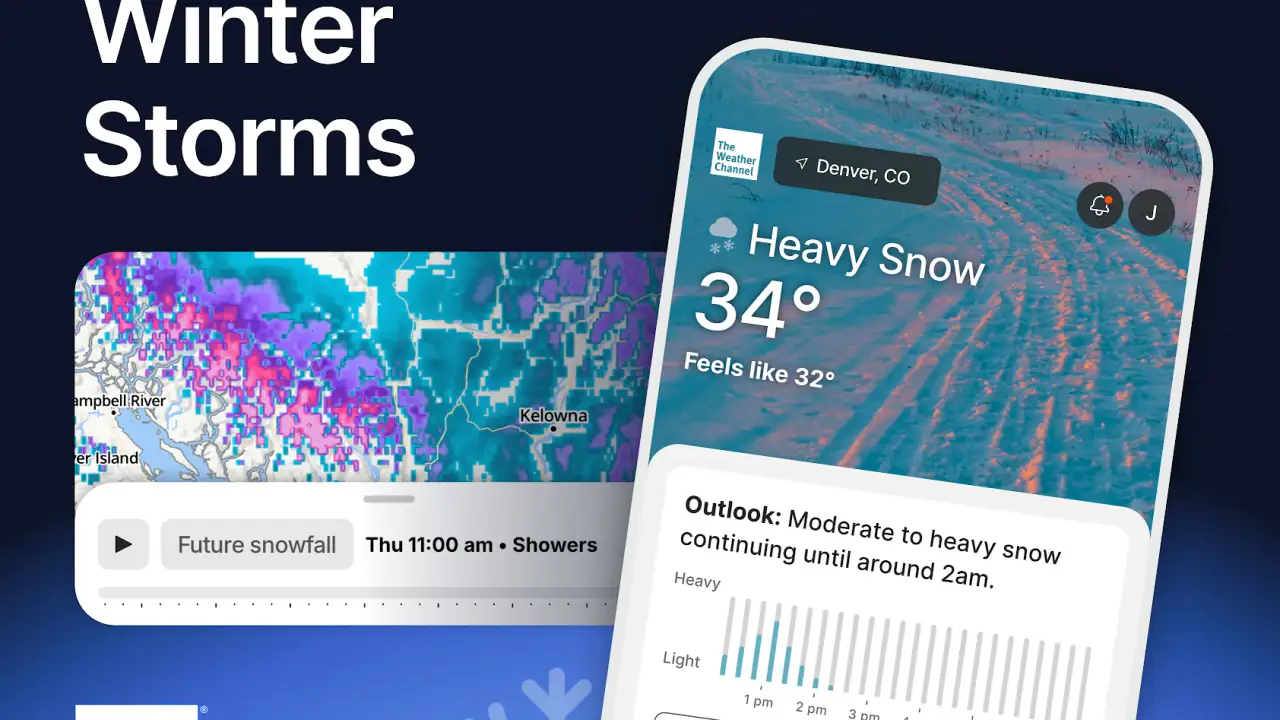
The first meaningful success I would aim for is not simply reading the temperature. It is using the radar view to answer a question such as, “Can I leave for the park in half an hour?” Open the radar, identify your location, and watch the direction and movement of the precipitation pattern rather than focusing only on its color. The useful result is a decision: leave now, delay the trip, take an umbrella, or choose an indoor alternative.
This is where the app separates itself from a basic weather widget. A widget is excellent for a quick glance, but it generally does not give the same visual sense of what is moving toward you. The radar view can be more helpful when rain is scattered or changing quickly, because a single percentage in a forecast can hide the timing that matters to your plans.
There is an important limitation, though. Radar is not a promise that every drop will appear exactly where the animation suggests. Light precipitation can be inconsistent, and local conditions can change between updates. I use the radar as evidence, not as a guarantee. If the activity is important, I combine it with the current forecast and any relevant alert rather than relying on one visual layer.
For a realistic everyday example, imagine that I am preparing to cycle home after work. The hourly outlook may suggest a reasonable window, but the radar can show a narrow band approaching from one side. I might leave earlier, wait fifteen minutes, or choose public transport. That is a more practical use of the app than repeatedly refreshing the temperature.
How notifications fit into the workflow
Notifications are most useful when they reduce the need to keep checking the screen. The app is built to provide live alerts and severe-weather information, so I would enable them only with a clear purpose. If I want warnings that could affect travel or outdoor plans, alerts can act as a second layer of awareness. If I dislike frequent interruptions, I would keep notification choices focused and use the app manually for ordinary weather changes.
A useful habit is to treat an alert as a prompt to open the full forecast, not as the entire forecast itself. The notification may tell you that something deserves attention, while the radar and local outlook help you understand timing and likely impact. This two-step workflow is more reliable than reacting to a short message without checking where the weather is relative to you.
Another practical tip is to avoid leaving alerts enabled for places you no longer visit. Multiple saved locations can be convenient for family, travel, or work, but unnecessary alerts quickly make weather notifications feel noisy. Keeping the list intentional makes the important warnings easier to notice.
Common confusion around radar and forecast language
The most common point of confusion is assuming that radar and forecast information answer the same question. Radar is about what is being observed or tracked around an area, while a forecast describes what is expected over a period of time. If radar looks clear at this moment, that does not automatically mean the entire afternoon will remain clear. Conversely, a broad forecast chance of rain does not mean rain will fall continuously over your exact location.
Color intensity can also be misleading when viewed quickly. A brighter area on a radar display usually deserves more attention, but I would still look at its movement, coverage, and relationship to my location. A small intense patch that is moving away may matter less than a wider area approaching slowly. The useful question is not “What is the strongest color?” but “What is likely to affect my plan, and when?”
Another source of friction is the difference between a current condition and an alert. Current conditions describe what is happening around the selected place now. An alert is a warning that a potentially important weather situation deserves attention. They can appear inconsistent when conditions are calm but a warning is active nearby. In that case, I would inspect the affected area and timing before deciding whether it changes my own plans.
The application can also feel more crowded than a stripped-down forecast app. That is the trade-off for having radar, live information, and multiple ways to inspect the weather in one place. If you only want a clean temperature and a small forecast, a simpler alternative may feel faster. I would choose The Weather Channel when I expect to investigate changing conditions, not when I want the least possible information.
Using it for travel, outdoor plans, and household routines
For short trips, I use the app in two stages. Before leaving, I check the forecast for the destination rather than assuming my home weather represents the whole route. Just before departure, I check radar and active alerts to catch changes that a static morning decision might miss. This is especially useful for outdoor errands, sports, walks, and appointments where shelter is limited.
For travel planning, I would save only the locations that matter for the current trip. A compact list is easier to scan than a collection of old destinations. I also avoid treating a favorable forecast as permission to ignore changing conditions. Weather information is most valuable when checked at the moment a decision becomes important.
At home, the app can support small routines without becoming a constant distraction. I might check it before hanging laundry outside, walking a dog, or deciding whether to open windows. These are modest use cases, but they show why the combination of current conditions and radar is more useful than temperature alone. The exact temperature may not change my plan; the timing and movement of rain often will.
For severe weather, I would take notifications seriously but keep a second source of official local guidance available for major emergencies. The Weather Channel can help surface information and give context, yet an app should not be the only basis for safety-critical decisions. If authorities issue instructions, those instructions take priority over a convenient forecast view.
Where it compares well with simpler alternatives
A basic phone weather widget wins on speed. It can tell you the temperature and perhaps a short outlook without asking you to navigate through a larger interface. If that is all you need, The Weather Channel may feel excessive. Its advantage appears when the question changes from “How warm is it?” to “What is moving toward me, and should I change my plan?”
Some dedicated radar apps may feel more focused for users who spend much of their time studying precipitation patterns. A radar-first tool can be preferable if you want a specialized display with less general forecast content. The Weather Channel is more balanced: it combines everyday weather checking with radar and alerts, so you do not need separate tools for ordinary planning and occasional severe-weather awareness.
It also differs from relying on a search engine or a browser page. Those methods are fine for a one-off lookup, but they do not provide the same continuity of saved locations, visual tracking, and notification workflow. In my experience, the app makes more sense for repeated use, especially if weather affects commuting, outdoor work, exercise, or family schedules.
The trade-off is attention. More information can produce better decisions, but only if you know which part to use. A first-time user should resist scrolling through every panel and instead build a small routine: current conditions for the immediate check, forecast for the broader plan, radar for timing, and alerts for situations that need prompt attention.
Who should use it and who may want something else
I would recommend it to someone who wants a dependable all-purpose weather companion and expects to look beyond a daily high and low. It is particularly suitable for people who plan outdoor activities, commute through changing conditions, monitor several meaningful locations, or want severe-weather notifications available in the same app as the regular forecast.
I would be more cautious recommending it to someone who wants an almost invisible utility with no extra screens or interruptions. A lightweight widget or simpler weather application may be a better fit for that person. I would also not use any consumer weather app as the sole authority for urgent safety decisions. The Weather Channel is useful for awareness and planning, but serious conditions require attention to official instructions and local context.
People with older devices should confirm that Android 9 or later is available before trying to install the current release. For everyone else, the free entry point makes the decision straightforward: use the basic experience for a few real situations, then decide whether the presentation, alerts, and available options justify keeping it as your regular weather tool.
The next step after the first successful check
Once I had used radar successfully, my next step would be to create a repeatable routine for one location. I would check the current conditions before leaving, use the forecast for the rest of the day, and open radar only when timing matters or the sky looks different from the prediction. This prevents the app from becoming a stream of information without a clear purpose.
I would also test notifications during ordinary days before depending on them during severe weather. That lets me learn how noticeable they are and whether they arrive in a way that fits my routine. If they become distracting, I would adjust them rather than disabling every useful warning. The goal is a signal that helps me act, not a constant flow of updates.
After several uses, I would decide whether the app earns a permanent place on my phone based on decisions it improves. Does it help me avoid a wet walk, choose a better departure time, or notice a warning early enough to change plans? Those are better tests than whether the interface contains every weather detail.
My overall view is positive, with a clear qualification: The Weather Channel - Radar is strongest when you use its information to make a decision, not when you simply browse it. It offers a broad weather experience from a familiar developer, costs nothing to begin, and combines everyday forecasts with radar and live alerts in a way that is more capable than a basic widget. The interface may feel busy, and radar still requires sensible interpretation, but the path for a first-time user is reassuringly simple: choose the right location, confirm the current conditions, watch what is approaching, and let that information guide the next practical choice.
FAQs for The Weather Channel - Radar
What features does The Weather Channel app offer?
The Weather Channel app provides a comprehensive suite of features including live radar, severe weather alerts, and local forecasts. Users can track storms, view hourly and daily forecasts, and access a variety of weather maps. Additionally, the app offers news updates and safety tips for dealing with extreme weather conditions.
Is The Weather Channel app free to use?
The Weather Channel app is free to download and use, offering access to basic weather information and features. However, there is a premium subscription available that removes ads, provides enhanced radar options, and offers advanced features like the 15-minute forecast to better plan your day.
How accurate is the weather data provided by The Weather Channel app?
The Weather Channel app is known for its accuracy, leveraging data from a vast network of weather stations and satellites. It uses advanced algorithms to deliver precise local forecasts. However, as with any weather service, there might be occasional discrepancies due to rapidly changing conditions or unforeseen weather patterns.
Can The Weather Channel app be customized for personal preferences?
Yes, The Weather Channel app allows users to customize notifications for specific weather events and set their preferred locations for easy access to local forecasts. Additionally, users can choose between different map layers and radar views to tailor the app experience to their needs.
Does The Weather Channel app work offline?
The Weather Channel app requires an internet connection to provide real-time weather updates and radar imagery. However, it can retain some previously downloaded data for offline viewing, such as recently checked forecasts and alerts, but this information may not be up-to-date without a connection.
Pros
- Accurate weather forecasts with real-time updates.
- Detailed radar maps for precise weather tracking.
- Customizable alerts for severe weather conditions.
- User-friendly interface with easy navigation.
- Global coverage with localized weather insights.
Cons
- Frequent ads can disrupt the user experience.
- Some features require a subscription.
- Occasional slow loading times on older devices.
- Battery drain can be significant with prolonged use.
- Large app size may consume substantial storage.


